Prompts
You can save your favorite prompts in ChatWise.
Use a prompt
You can use Command+K or Ctrl+K to view and use the prompts, we provide some built-in prompts by default:
summarizetranslateexplainfix-grammarimprove-writingchange-tonechange-length
For example, if you select the summarize prompt, ChatWise will enter the following text into the input box:
Summarize the following text, return the summary only:

@{{text}}
Where @{{text}} is a variable that will be rendered as a text input by default:
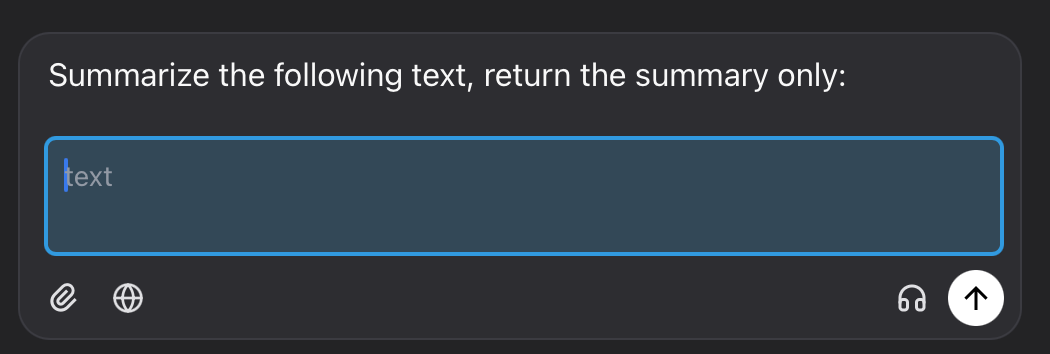
If you enter a URL here, ChatWise will also fetch the content of the URL.
Create a prompt
You can view and edit your prompts in the Prompts settings:
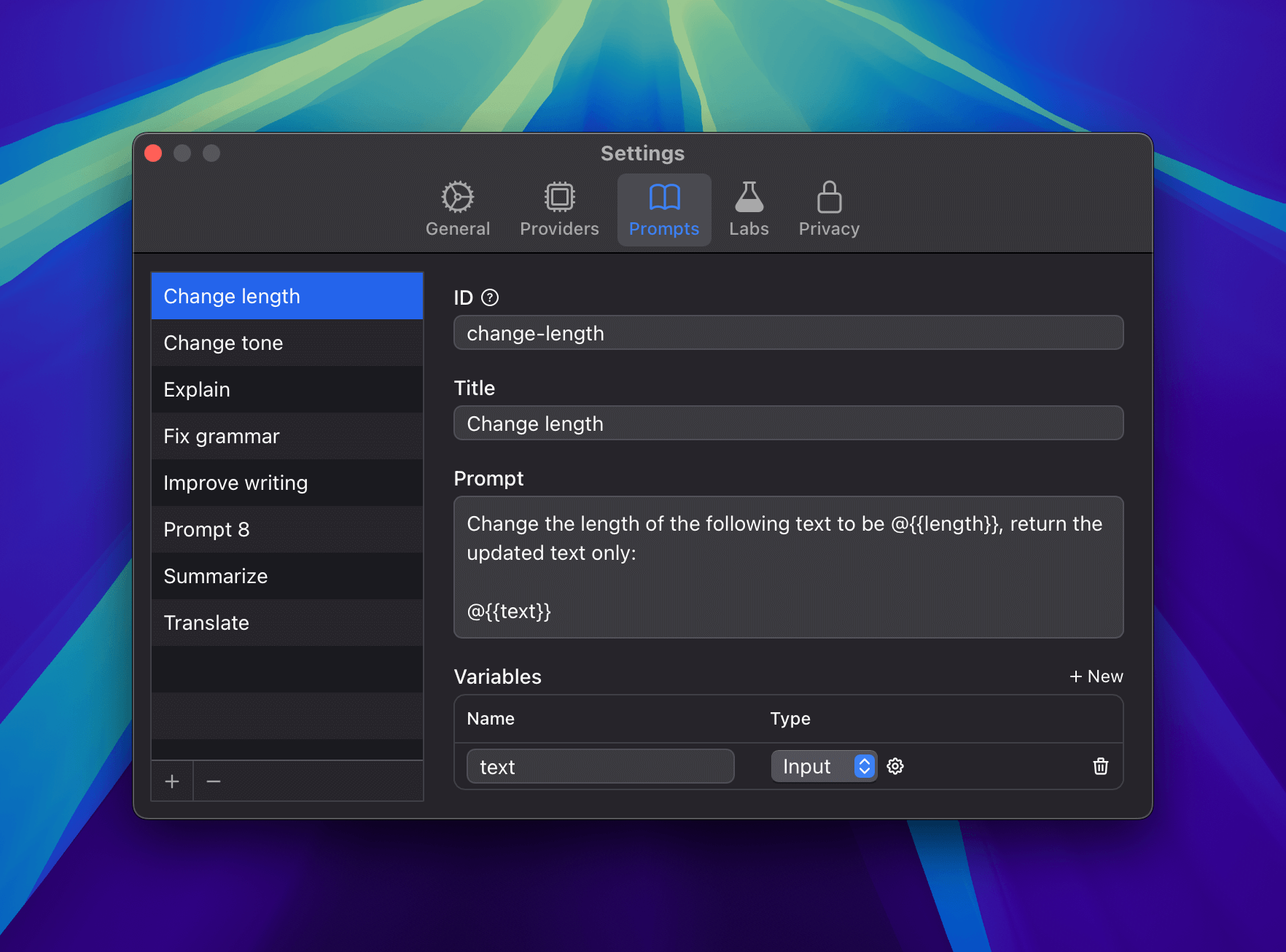
Prompt ID
Each prompt has a unique ID, which is used to identify the prompt when you use it in other apps. This ID must only contain lowercase letters, numbers, underscores and hyphens.
Variables
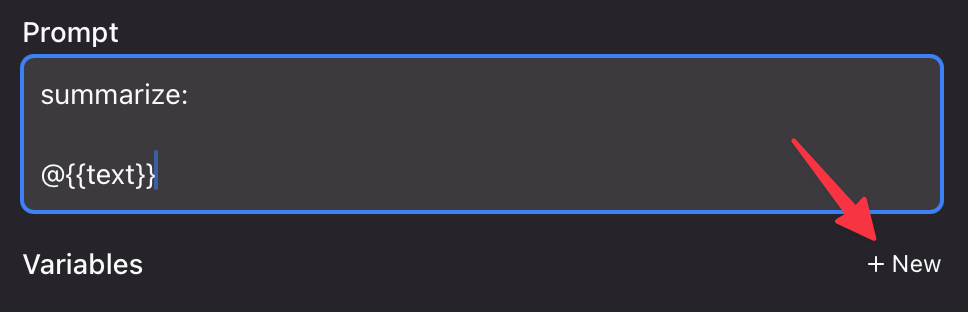
If parts of your prompt need to be configurable, you can use variables. Variables are identified by @{{variable_name}} in the prompt.
By default variables are rendered as a text input, but you can click + New under the Variables section to customize the variable behavior:
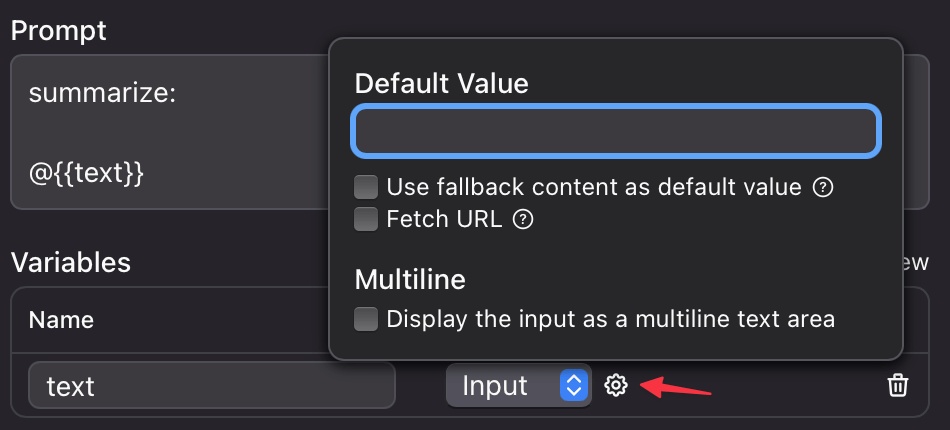
Update the variable name to match the variable you want to configure, and click the gear icon to set variable options:
Built-in variables
@{{TODAY}}: Insert the timestamp of today.